 Card Vendor Guides
Price tags & the reducer
Design the tag once, print it everywhere, scan it when the card sells.
1. Design a layout
- Open Settings → Tag layouts. Pick one from the Layout select, or start with New layout or Duplicate layout.
- Set Name, Label width, and Label height in millimetres: 10–150 mm wide, 8–100 mm tall.
- Add fields with Add a field → Add field. Each field has Prints (which value it shows), Align, Font size, Rotation, and Fixed text; barcode fields can Print the SKU under the bars, price fields can Round to whole dollars.
- Arrange everything in the live preview, which draws sample data at your exact label size. Drag a field to move it, or its corner and edge handles to resize; arrow keys move 0.5 mm, Alt+arrows resize, 0.1 mm with Shift, and Delete removes the focused field.
- Click Save layouts when it looks right. Discard changes, Undo, and Redo sit beside it.
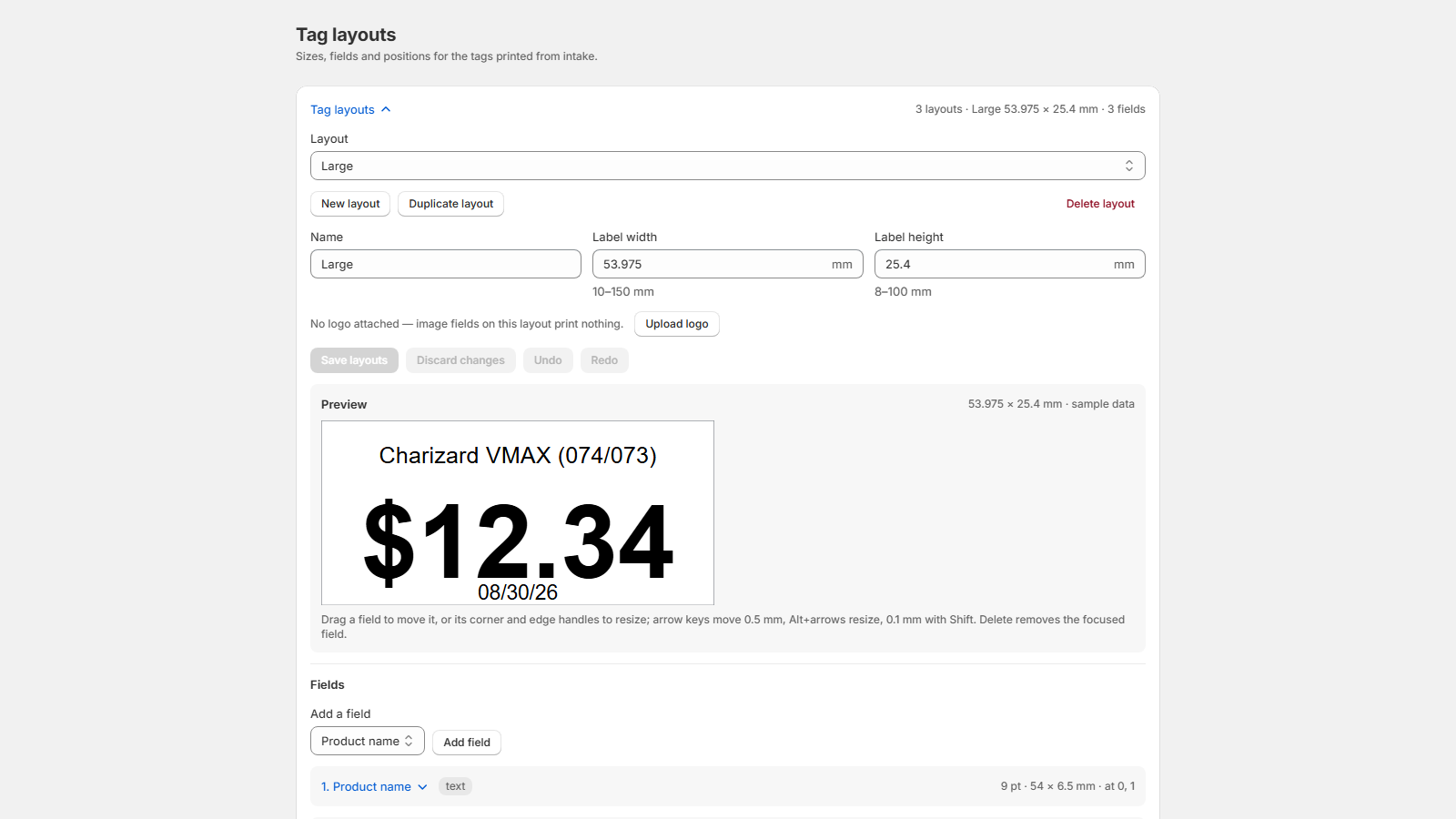
Upload logo attaches a PNG or JPEG to the layout. Until
one is attached, image fields print nothing (the screen warns exactly
this), so upload a logo before printing any layout with an image field.
2. Print tag sheets
- From Intake: after a buy, pick a Tag layout and click Print tags. The buy's tags open as a PDF.
- From Reprice: select the rows you changed, pick a layout, and click Print tags so the shelf matches the new prices.
- Binder pages print too: Print tags for page 1 on the Binder screen.
3. Scan to decrement with the reducer
The reducer takes a sold card's tag from scan to stock change in one pass. It is part of the Shop plan.
- Open Settings → Reducer and scan or paste codes into Barcodes / Certs / SKUs, comma or newline separated. TAG grading URLs are stripped to the cert number.
- Click Stage for quantity reduction. Matches appear under Shopify matches with Current qty and New qty side by side, plus a card count and total value.
- Click Reduce 1 on a row, or Reduce all by 1 for the whole batch. Each row reports Reduced or Failed on its own, and the quantity shown is always what the store actually holds.
When a reduction reaches zero, the product is archived and the row shows an Archived badge. If the archive step fails, a banner names the item so you can finish it in Shopify admin.