 Card Vendor Guides
Buylist intake
Search, stage, adjust, then create the whole buy in Shopify with one click.
Pick a product type
The tabs across the search panel set what you're buying and which rates apply: Raw, Slab, Sealed, Video game, Custom item, Bulk. Raw, Sealed, and Video game are searchable; Slab starts from a cert number with a Look up for PSA, TAG, and CGC; Custom item is a form; Bulk is a count grid by category. Bulk is receipt-only: counted cards are paid on the trade receipt and never created in Shopify.
Search, click, next card
- Type a name in the search box. Each result shows its price and how recently it was priced.
- Click a result to stage it. Raw cards land with quantity 1, Near Mint, Normal.
- Once the add lands, the results and search box clear and the cursor returns, so you can scan the next card straight in.
No matches? The Enter manually form opens with the name already filled in. It also opens on demand. Fill in Name, Base price, Qty, and Product ID (required for raw cards), then press Add.
Adjust the staged rows
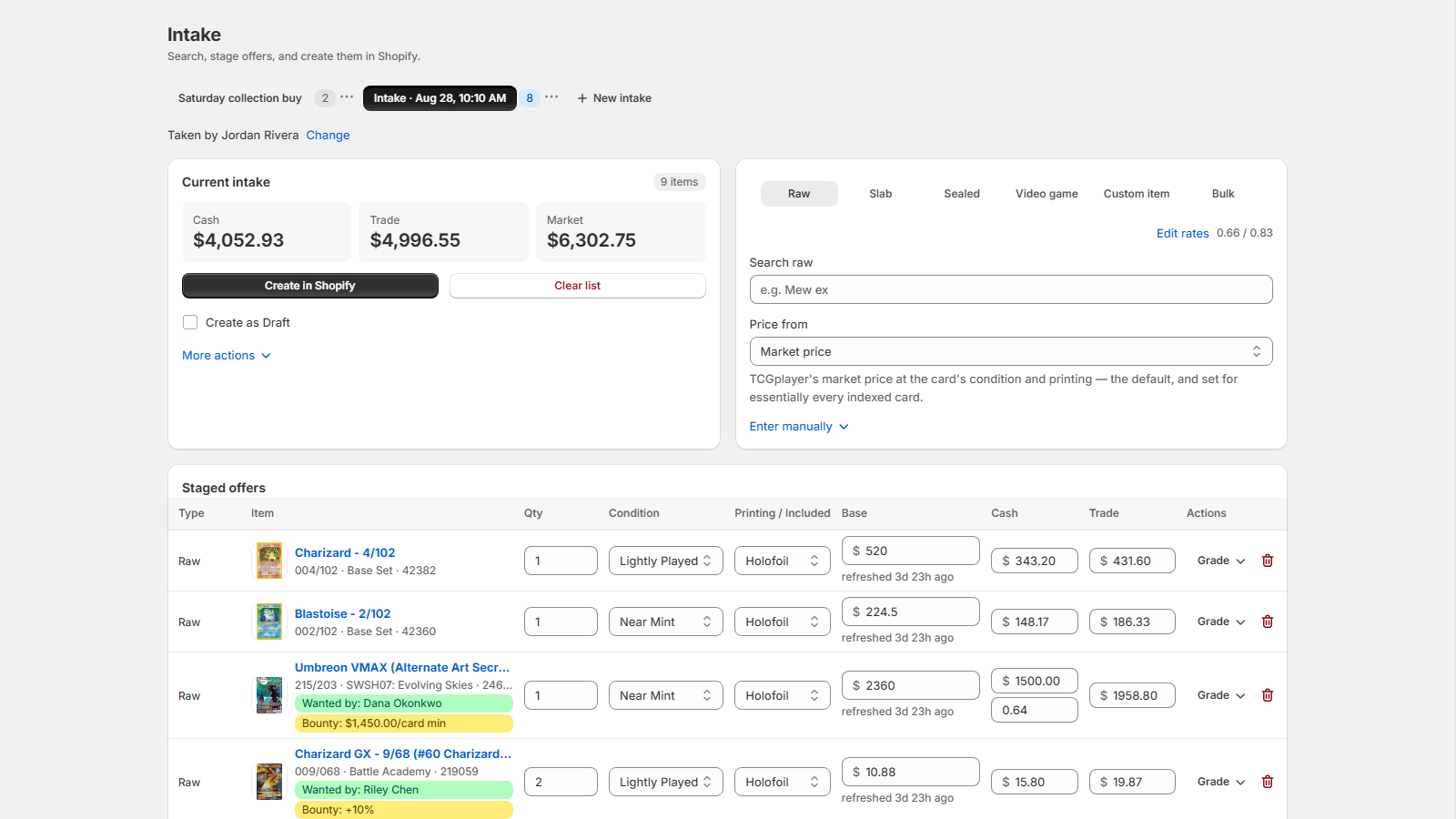
Every row edits in place: Qty, Condition, Printing / Included, and Base, the price your rates multiply. "System:" hints under Qty and Base show what that product already holds in Shopify. The trash icon removes a row.
The Cash and Trade cells hold the offers, and each side negotiates on its own. A cell shows the dollar total; click into it and a rate field appears underneath. Type a dollar amount or a rate. The other recomputes, and the one you typed is stored exactly. A negotiated side keeps its rate field showing; empty it to return to rate-card pricing.
More than one buy at once
Every open intake is a tab above the screen. New intake starts another (the Vendor plan holds one at a time), so you can park a collection buy while a quick single rings through. A tab's overflow menu offers Rename and Close intake. Closing keeps the staged offers but pushes nothing.
With employee tracking on and staff added under Settings → Employees, starting an intake asks "Who is taking this intake?" and the screen shows Taken by with the name. Change corrects it while the intake is open.
Create it in Shopify
- Check the Cash, Trade, and Market totals under Current intake. Cash paid, under More actions, splits a mixed cash-and-trade deal.
- Press Create in Shopify. Tick Create as Draft first to create them as Shopify drafts instead.
- Print the buy with Trade receipt (under More actions). Clear list abandons the staged offers after a confirmation.
When the customer takes product as part of the deal, the Trade-out panel below the staged offers (on plans that include it) stages it from your own inventory: scan or search, set the trade value, and the balance line shows who still owes what. The stock comes off Shopify inventory when you create the intake.