 Card Vendor Guides
Grading tracker
Flag cards at the counter, batch them off to a grader, and list the slabs that come back.
1. Flag a card during intake
Grading calls usually happen mid-buy, so the flag lives on the staged row.
- Click Grade on a staged card row (it reads Grading once the card is tracked).
- Pick the Grader (PSA, TAG or CGC) and enter Flagged by, the employee making the call. Notes are optional.
- Click Flag for grading.
While the card's status is still Flagged, the same panel lets you edit grader, employee and notes and Save. After that, edits move to the grading page.
2. The pipeline
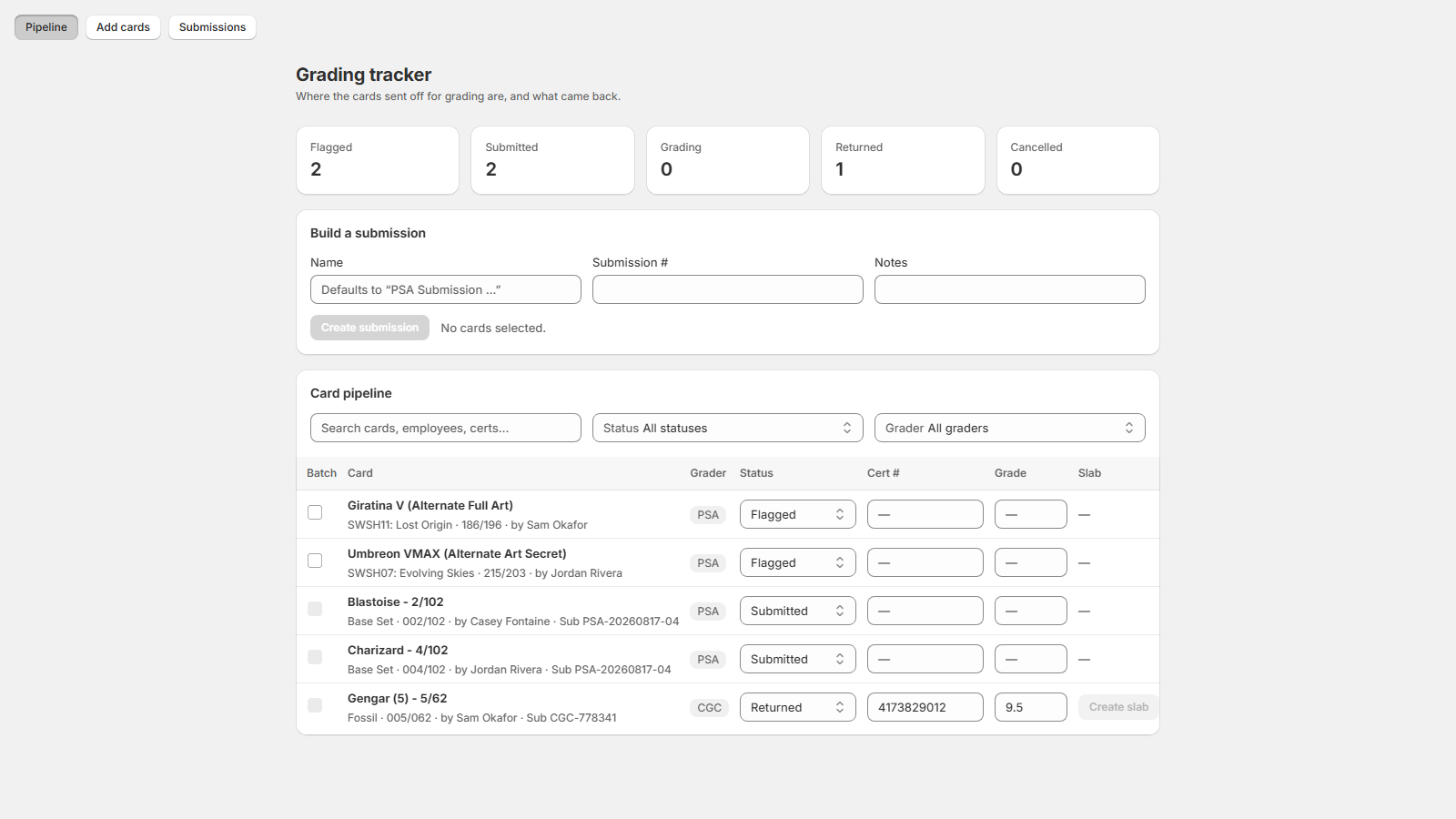
Grading → Pipeline lists every tracked card. The per-row Status select moves a card through Flagged, Submitted, Grading and Returned, or to Cancelled. Tiles at the top count each status, and the table filters by text, status or grader.
3. Add cards without an intake
Grading → Add cards carries the same card search as intake. It searches your own Shopify inventory by default; untick Search my Shopify inventory instead to search the price index, which also fills the card's game, set, number and image. If nothing matches, Manually Enter takes just a card name. Fill Flagged by, then click Flag card. The card lands in the pipeline as Flagged.
4. Batch a submission
- On the Pipeline page, tick the Batch checkbox on flagged cards. One submission holds one grader's cards.
- Fill Name, Submission # and Notes if you have them, then click Create submission.
- Track the batch under Grading → Submissions. Moving it through Preparing, Submitted, Grading and Returned moves every card in it.
Only a Preparing submission can be deleted. Its cards go back to Flagged.
5. When a slab comes back
Set the card's Status to Returned and record the cert in the Cert # column and the grade under Grade. Once a returned card has a cert number, Card Vendor creates the Shopify product for the slab. The row shows a Slab created badge, and a Create slab button retries if the write failed. Products are matched by cert number, so a retry updates rather than duplicates.
To verify a cert against the grader's own records, use the slab form on the Intake screen: pick the Grader, enter the Cert number or TAG URL and click Look up. The slab's details fill from PSA, TAG or CGC.