 Card Vendor Guides
Binders
Display pages with live values, pocket by pocket, and public if you want.
1. Create a binder
- Open Binder, type a name in New binder, and click Add binder. It opens at page 1, laid out 3 × 3.
- Change Rows and Columns under Page layout (1–12 each way) to match your sheets. Cards re-flow across pages.
2. Fill the pockets
- Click an empty pocket. A small editor opens inside it. Search your stock finds cards from your own inventory.
- Click a result to choose it. If the product carries no set or card number, the editor asks you to add them so the pocket reads.
- Card not in Shopify yet? Manually Enter takes a name, set, and card number by hand.
- Details sets condition, printing, and a note; Add files the card.
Condition initials (NM, LP, MP, HP, or DM) sit top-right on each card's front. Drag cards between pockets to rearrange; dropping onto a filled pocket swaps the two.
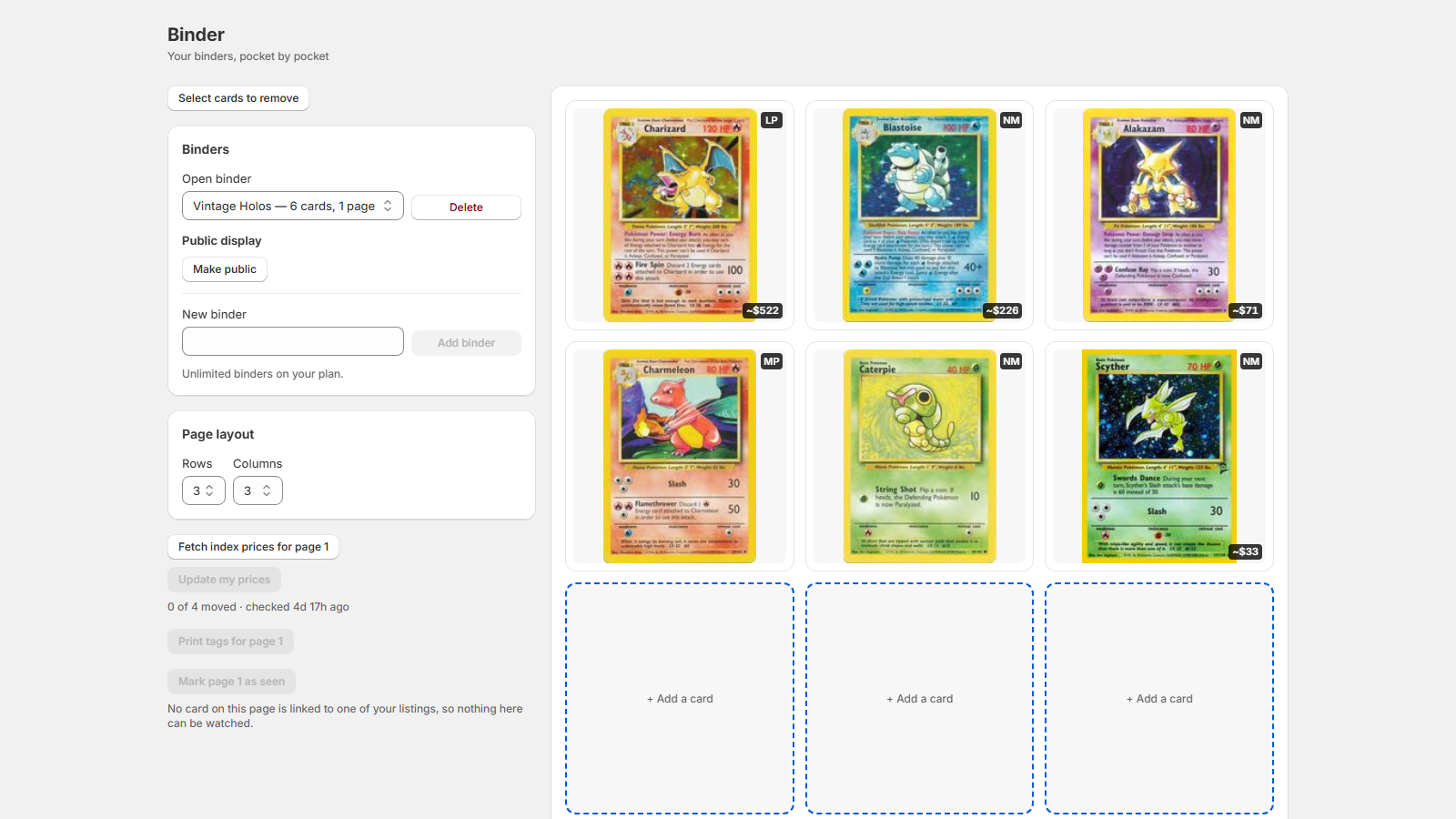
3. Read the price chips
The dark chip bottom-left is your own listing's price, rounded. Hover for the exact figure, and "$?" means the listing has no price set. Click a card to flip it: the back shows the exact price, the index snapshot, and Take this card out.
Click Fetch index prices for page 1 and an index chip appears bottom-right on each fetched card: the index's price above the movement: ▲ or ▼ with the percent, "=" when it agrees, "no index" when the card is not in the index. The line under the button sums the page, e.g. "3 of 18 moved · 2 unchanged · checked 5m ago".
Update my prices pushes the fetched index prices onto your Shopify listings for that page. It asks first, naming the count and the money, and the report afterwards keeps the old prices on screen. There is no undo. Moves of 10x or more are held back under These need a second look and apply only one card at a time.
4. Watch what leaves
You can only watch cards linked to one of your listings. The screen says so when nothing on a page is linked. When stock drops, the pocket shows a "2 gone" mark; Mark page 1 as seen clears the marks and measures the page from what you hold today.
5. Publish and prune
- Click Make public under Public display. The Public page field shows the address on your own domain to share; Make private takes it down.
- To empty pockets, click Select cards to remove, mark cards across any pages, then click Remove 5 cards. It confirms before emptying, and your Shopify listings are untouched.